With the recent winter weather, and the combination of ice and snow, I’ve found myself cooped up inside for several days. As a result, I decided I needed a diversion that was something other than sitting on the couch brain-rotting by bingeing shows on TV.
I had been toying with the idea of re-writing a spam filtering utility I wrote a while back and decided now would be a good opportunity to do it. I originally created a solution in Python, but when Microsoft changed their third-party security policy, the Python solution no longer worked. I could have re-worked it, but that would have required creating a developer account and subscribing for their service… no thank you.
As an alternative, I decided to explore native options already available within Outlook that didn’t require creating additional cloud-based accounts or paying for services. The first option was to create an email rule that would compare incoming emails with a list of email domains categorized as spam. This option is relatively easy to implement, but requires a lot of manual steps to manage any time a new spam email domain is discovered and needs to be added to the list.
The other option would be to create a Visual Basic (VB) macro. This would require a little more effort up front, but the payoff in the end would be more than worth it. By using VB, I can create a solution capable of checking new emails as they are received and also automatically add new spam email domains to the list.
In order to achieve this, I would need to configure a few things…. First, within Outlook, I needed to enable the Developer Mode option. This was easy to do by going to File > Options > Customize Ribbon; then checking the box next to the Developer option under Main Tabs. Doing this adds the Developer menu at the top and the ability to create macros. Next was to create a folder in File Explorer at the root level ( C:\ ) that would store the text file of known spam email domains. Finally, a new parent-level email folder was created that would be used to place received spam emails that weren’t already in the spam domain list text file. This new email folder is not a sub-folder under the Inbox. If you create it as a sub-folder, you will need to update the path in the VB macro.
Summary of initial steps:
- Enable Developer Mode in Outlook
- Create new folder in File Explorer at root level of C: drive (_spam_domains)
- Create new email folder for storing new spam emails to be added to spam list (BadEmail)
With the initial steps completed, it was time to create the macro(s). I wanted the solution to be able to provide the following capabilities – automatically check if the sender of received new emails was already on the spam domain list; move any matches to the Deleted Items email folder; automatically update the spam domain list text file with new spam domain entries. To achieve this would require two separate macro files, one to automatically check new incoming emails, the other to address the actual processing and logic.
I started with the second file since that is where all of the functionality is located. The macro consists of 10 separate functional sections and are defined as follows:
- CheckInbox() – this does nothing more than make a call to the next code block: ProcessSpamEmails(). Its purpose is to allow manually running the macro or from a button in Outlook and displaying a confirmation when done via a MsgBox message.
- ProcessSpamEmails() – this does a few things… it checks ONLY for unread emails in the Inbox, gets the sender’s email domain, and then checks to see if it exists in the spam domain list text file. If found, move to the Deleted Items email folder. This also makes a call to the ProcessBadEmailFolder() routine.
- ProcessBadEmailFolder() – this processes any emails placed in the BadEmail folder. It gets the sender’s email domain and checks to verify it doesn’t already exist in the text file. After verifying it doesn’t exist, it adds it to the list and moves the spam email to the Deleted Items email folder and then alphabetically re-sorts the list. This last step is for convenience purposes when viewing the text file contents.
- GetSenderDomain() – this returns only the sender’s email domain. If the full sender email address is alert_geF3D9aopJZ@jackiertswedding.de it will only return the jackiertswedding.de portion.
- ParseDomain() – this evaluates the sender’s domain obtained from GetSenderDomain() to determine if it contains one or more sub-domains. e.g. jeriolvyt.academiaeslava.com if it does, it parses to the main domain, retaining the leading ‘ . ‘ (.academiaeslava.com). This is necessary to prevent legitimate domains from accidentally getting filtered. This also reduces the number of entries in the spam domain list file while still filtering for spam.
- AddSpamDomain() – this adds new spam email domains to the spam domain list text file (spamDomainsList.txt).
- LoadSpamDomains() – this opens the spam domain list text file located on the C: drive (C:\_spam_domains) and loads the content into a comma delimited list.
- CheckExistingDomain() – this checks if the sender email domain is already in the spam domain list text file.
- SortAlphabetically() – this reorganizes the file contents alphabetically. This is only done to make it easier to review the file contents when manually opened.
- CountSpamDomains() – this is purely optional and is run manually for the sole purposes of getting a total count of the spam domains in the text file.
The other macro file enables the automatic checking of new emails as they are received in the Inbox and is organized as follows:
- Application_Startup() – this runs when Outlook is started and sets variables necessary for detecting new emails.
- inboxItems_ItemAdd() – this detects when new email arrives in the Inbox and makes a call to the ProcessSpamEmails() functionality to check if the sender is in the spam domain list text file.
Getting this set up is fairly straight forward. First, download and save the spamDomainsList.txt file to the C:\_spam_domains folder you previously created. The macro expects to find the file in this location with that specific file name, so if you choose to use a different file or folder name or different folder location, you will need to update the macro every place it is referenced. When you identify new spam emails, those domains will get automatically added to this file.
Next, open Outlook and select the Developer menu option at the top and then select Visual Basic. This will open the Visual Basic interface and allow you to create macro entries. Then, right-click on the Project1 and mouse over Insert and select Module. This will create a new entry named Module1.
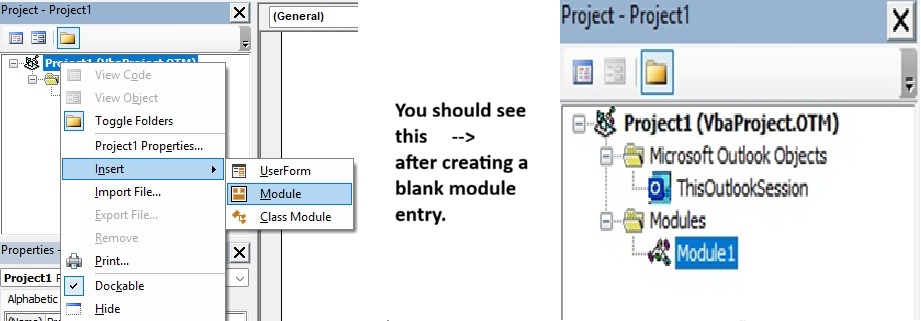
On the right side should be a large empty box; this is where you will paste the content from the spamFilter.txt file you downloaded. After you download and paste the content into Module1, you will need to update the following line in the ProcessBadEmailFolder() code block with your Outlook email address.
Set badFolder = olNs.Folders(“your_Outlook_email“).Folders(“BadEmail”) ‘ Replace your_Outlook_email with your actual Outlook email address. Your email address needs to be between the quotes.
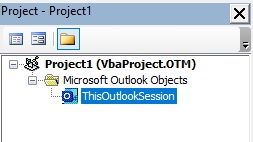
Now that the main spam filtering macro has been created, you will create the macro that will automate checking new emails when they arrive. The macro content for this will be saved to the ThisOutlookSession object. Same as before, download the file ThisOutlookSession.txt and copy the content in the empty box to the right after selecting ThisOutlookSession under Microsoft Outlook Objects.
After completing these steps, close Outlook and then re-open it. At this point, Outlook should automatically check new email to see if the sender’s domain is in the spamDomainsList.txt file. Whenever new spam email arrives and the sender’s domain is NOT in the list, simply move that email to the BadEmail folder in Outlook. Then, the next time the Inbox detects a new email has arrive the macro will run. Any emails in the BadEmail folder will get added to the list of known spam domains… or you can manually run the macro to process them and add the domains to the list.
Efficiency Note: Spam filtering only runs while Outlook is open. If you close Outlook, any received spam email will be in your Inbox until you either receive a new email or manually run the macro.
Additionally, in the ProcessBadEmailFolder() code block is the ability to indicate sender domains that should be excluded from email filtering. Add the domains to the comma delimited list to avoid filtering:
excludeList = “gmail.com, outlook.com” ‘ Sender Domains to be excluded from spam filtering.
If you are tired of dealing with spam email, give this a try and let me know how it works out for you. Enjoy…